Click the owl
Your Mac stays awake until you stop it, or for the default length you choose. Click again and it may sleep. Go on, click it.
Timers, a time of day, or rules that know when Xcode is open, a download is busy or a display is plugged in. Native, offline, and out of the way until you need it.
Your Mac can sleep
No session or rule is active
Keep your Mac awake automatically, for example while an app is running.
It works like the app. Try it.
How it works
Wakeward lives in the menu bar and nowhere else: no Dock icon, no window to keep around. Its eyes tell you where things stand.
Your Mac stays awake until you stop it, or for the default length you choose. Click again and it may sleep. Go on, click it.
The popover: a countdown ring, eight durations from 15 minutes to a time of day, the two modes and your rules. Settings can swap the two clicks.
One global shortcut toggles the owl. Record your own in Settings; Wakeward warns you when macOS or another app already uses it.
Keep the screen on for slides, dashboards and long reads, or keep the Mac working while the screen goes dark, for downloads, renders and backups.
Three actions for the Shortcuts app and Spotlight: keep awake, stop, and ask whether the Mac is kept awake. “Keep my Mac awake with Wakeward” works too.
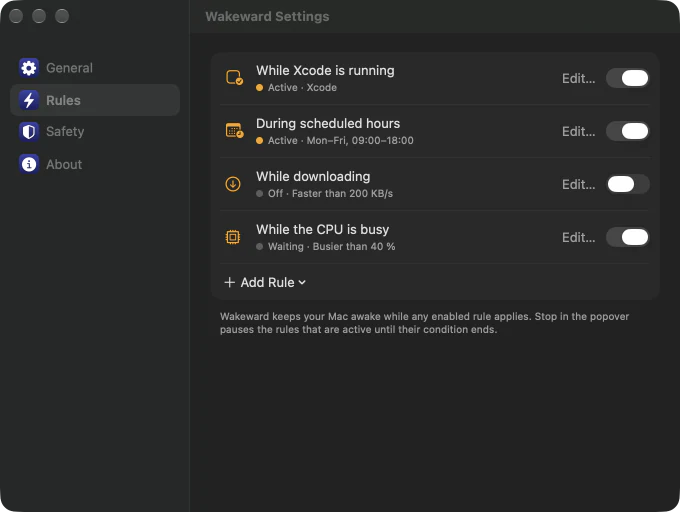
Rules
Tell Wakeward what matters and it stays up on its own: while Xcode is open, while a big download runs, during work hours. When the reason goes away, so does the owl. Stop pauses the rules that are active until their condition ends.
Keeps your Mac awake while any of the chosen apps is open.
Keeps your Mac awake while one of the chosen apps is in front.
Keeps your Mac awake whenever it is plugged in.
Keeps your Mac awake while a display other than the built-in one is connected.
Keeps your Mac awake while data moves faster than the threshold, and for a minute after it slows down.
Keeps your Mac awake while the processor is busier than the threshold, for example during builds or renders.
Keeps your Mac awake on the chosen days between the start and end time.
Each rule has its own mode, and Settings → Rules shows which ones apply right now.
See it in the window aboveSafety
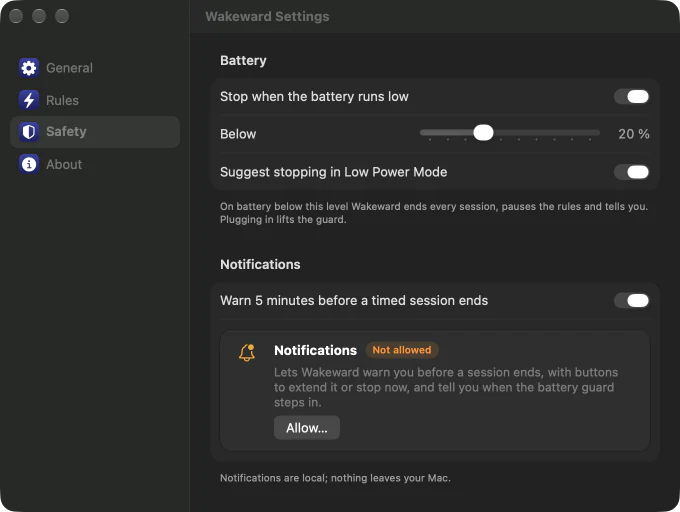
A night up shouldn't cost you a flat battery or a surprise. Wakeward keeps an eye on both, and says so when it steps in.
On battery below the level you choose, Wakeward ends every session, pauses the rules and tells you. Plugging in lifts the guard.

Battery low: Wakeward stoppednow
The battery is at 19 %, so your Mac can sleep again. Rules resume when you plug in.
Five minutes before a timed session runs out, a notification offers to give it another 30 minutes or stop right away.
Wakeward stops in 5 minutesnow
Your Mac can sleep again from 6:30 PM.
Turn on Low Power Mode while the owl is awake and Wakeward suggests stopping, right in the popover.
Low Power Mode is on. Stop to save energy?
Privacy
Keeping a Mac awake needs no internet, so Wakeward never goes online. This page loads nothing from anyone else either: no trackers, no outside fonts, no embeds.
Not one network call. A test in the app’s build scans every source file and fails if one appears.
Nothing is counted, collected or sent. There is no account to make.
New versions come from this page, when you decide to fetch them.
The warnings are scheduled by macOS on your Mac, and they are optional.
While the owl is awake, Wakeward holds exactly one power assertion, named after the reason: Wakeward: Manual, or the rule that applies, like Wakeward: Xcode is running. Stop, and it is gone.
$ pmset -g assertions
Assertion status system-wide:
   PreventUserIdleDisplaySleep    1
   …
Listed by owning process:
   pid 512(Wakeward): [0x00057a6b000197b2] 00:12:31
     PreventUserIdleDisplaySleep named: "Wakeward: Manual"
Install guide
Wakeward is not notarized by Apple, so macOS stops it the first time you open it. That is expected, and getting past it takes a minute. Keep this page open on your phone and tick off the steps as you go.
Download Wakeward-1.1.0.dmg (1.6 MB) and open it from your Downloads folder.
Drag Wakeward into the Applications folder. Do this before opening it.
Comfortable with Terminal? Run this instead, then open the app normally:
xattr -dr com.apple.quarantine /Applications/Wakeward.appThe welcome window walks you through four short pages. Allow notifications there if you want the five-minute warning and the battery message, switch on Launch Wakeward at login, and note the shortcut. All of it can be changed later in Settings.
It sits near the right end of the menu bar, eyes shut. Click it to keep your Mac awake; right-click for the popover. On a Mac with a notch, items that don't fit are hidden, and macOS 26 collects them behind a « in the menu bar: click it, or hold ⌘ and drag the owl further right.
Add rules in Settings → Rules, choose the default duration and what a click does in Settings → General, and set the battery guard in Settings → Safety.
FAQ
No. Closing the lid still puts a MacBook without an external display to sleep; that is macOS behaviour no app can override. Keep the lid open and Wakeward does the rest.
Wakeward is signed, but not notarized by Apple, so macOS blocks its first launch. You allow it once in System Settings → Privacy & Security, and the install guide above walks you through it.
None are required. Notifications are optional: they bring the five-minute warning and the battery guard’s message, and you can allow them in the welcome window or in Settings → Safety.
Only for as long as you ask it to stay awake, and the battery guard ends everything on battery below 20 % (you can choose 5 to 50 %). In Low Power Mode, Wakeward suggests stopping.
Display on keeps the screen on too, for slides, dashboards and long reads. Display can sleep keeps the Mac working but lets the screen go dark, for downloads, renders and backups. Each rule has its own mode.
The owl’s eyes are open and amber, and the popover shows why. In Terminal, this command lists a power assertion named “Wakeward:” followed by the reason while the Mac is kept awake:
pmset -g assertionsOn a Mac with a notch, menu bar items that do not fit are hidden; macOS 26 and later collect them behind a chevron («) in the menu bar. Click it, or hold ⌘ and drag the owl further right.
Never. Wakeward has no network code at all: no analytics, no update checks, no account. New versions are published on this page.
Macs with Apple silicon (M1 or later) running macOS 15 Sequoia or later. On macOS 26 and later it takes on the Liquid Glass look. The download is 1.6 MB.
Choose Quit at the bottom of the popover, then drag Wakeward from Applications to the Trash. If you had switched on Launch at login, turn it off first in Settings → General.
For the long download, the late render and the presentation that must not go dark.